

The best ergonomic keyboards do more than curve a row of keys. They change how your hands, wrists, and shoulders meet the desk. For remote professionals, that difference matters during long writing, coding, research, and support sessions.
This guide compares five leading options for the US market. It covers comfort, construction, switches, software, wireless use, price, and the learning curve that comes with a new layout.
Quick verdict: which ergonomic keyboard should you buy?
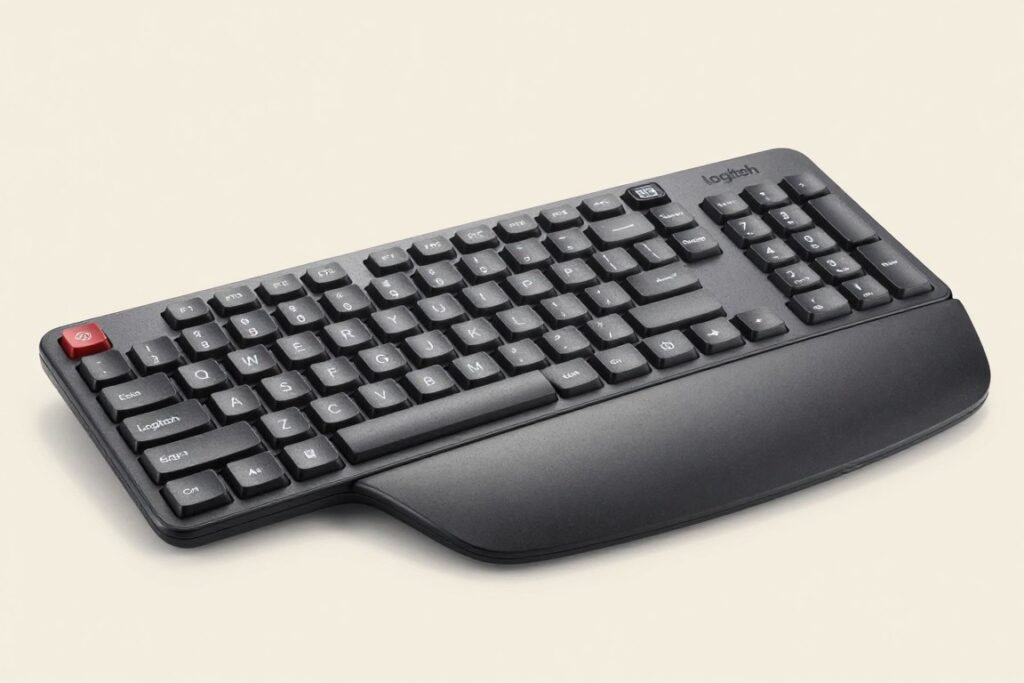
The Logitech Ergo K860 is the simplest starting point for people who want a familiar wireless ergonomic keyboard. Its curved key area, integrated palm rest, and conventional full-size layout make the transition less demanding.
The MoErgo Glove80 is the strongest choice for users who want a true split design, adjustable tenting, low weight, and deep programming control. It costs more and asks the buyer to learn a new position.
The ZSA Moonlander is best for enthusiasts, programmers, and power users who value layers, thumb clusters, and detailed remapping. The Kinesis Advantage360 favors users who want concave key wells and a fixed split design. The Keychron Q10 is a practical middle path for buyers who want a mechanical board with a compact, familiar shape.
Ready to narrow the list?
Use the comparison below to match connectivity, wrist support, switches, and price with your work style before opening a product page.
Top three comparison: features, comfort, and price
Prices change with switches, accessories, sales, and availability. The ranges below are approximate US-market positioning for 2026. Check the linked manufacturer or retailer page before ordering.
| Keyboard | Connectivity | Wrist support features | Switch types | Approximate US price |
| Logitech Ergo K860 | Bluetooth, USB receiver | Integrated cushioned palm rest, curved frame | Quiet membrane switches | About $100–$130 |
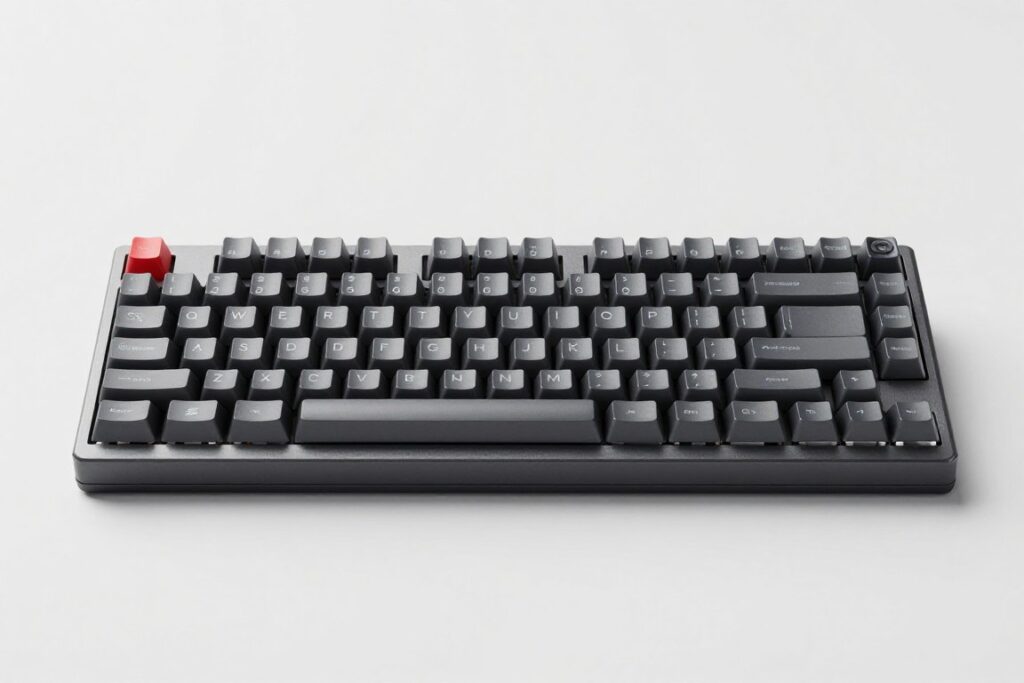
| MoErgo Glove80 | Bluetooth, wired USB | Split halves, adjustable tenting, separate palm supports | Low-profile mechanical options | About $350–$400 |
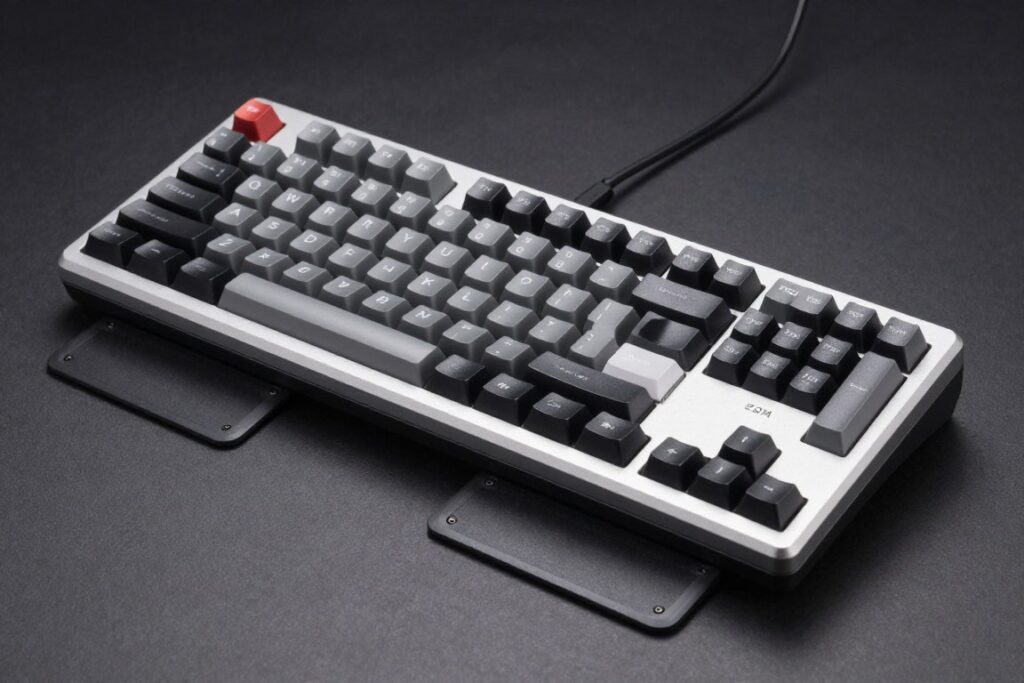
| ZSA Moonlander | Wired USB | Split halves, adjustable thumb rests, tenting legs | Hot-swappable mechanical options | About $365–$400 |
Check the current price before deciding
The K860 is usually the value choice. The Glove80 and Moonlander cost more because they offer deeper adjustment and programming.
How we assess ergonomic keyboards
A good ergonomic keyboard is not defined by one shape. We assess the relationship between the layout, hand position, wrist rest, key action, desk space, and software. A board may feel comfortable in one office and awkward in another.
The review framework starts with typing posture. We look at whether the design encourages a neutral wrist angle, whether the shoulders can stay relaxed, and whether the user can place the keyboard at a practical distance from the desk edge.
We also consider adjustment. Split designs, tenting, thumb clusters, concave key wells, and programmable layers can improve control for some people. They can also slow down the first week of typing.

- Comfort during long typing sessions
- Build quality and stability on the desk
- Key feel, sound, and switch choice
- Software customization and remapping
- Wireless reliability and device switching
- Value compared with the total price
Logitech Ergo K860 review: the easiest transition
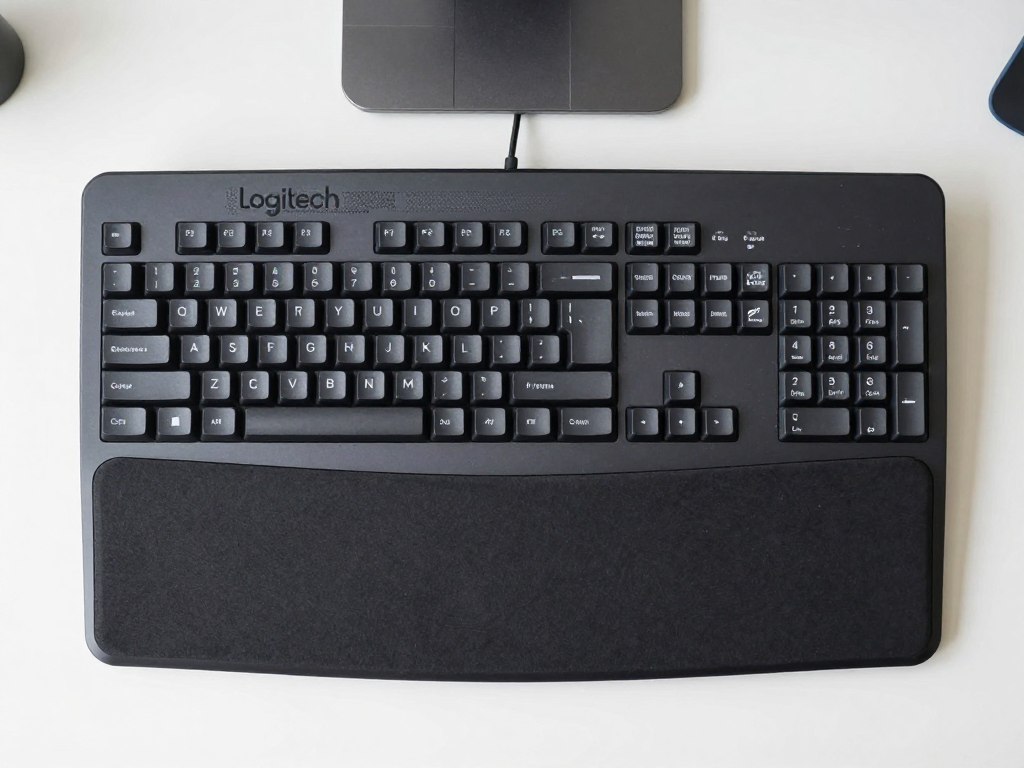
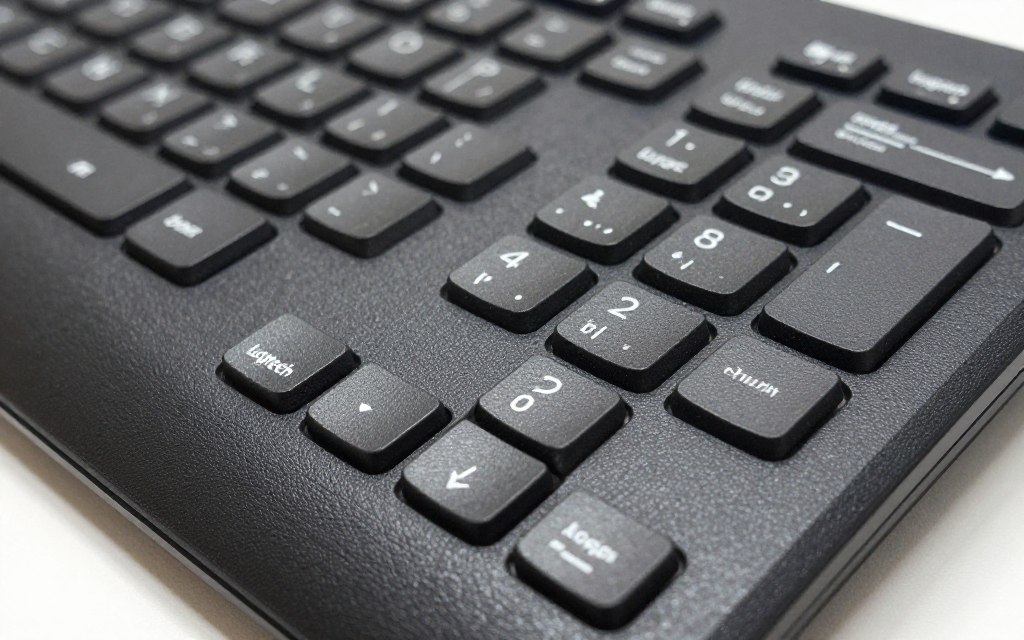
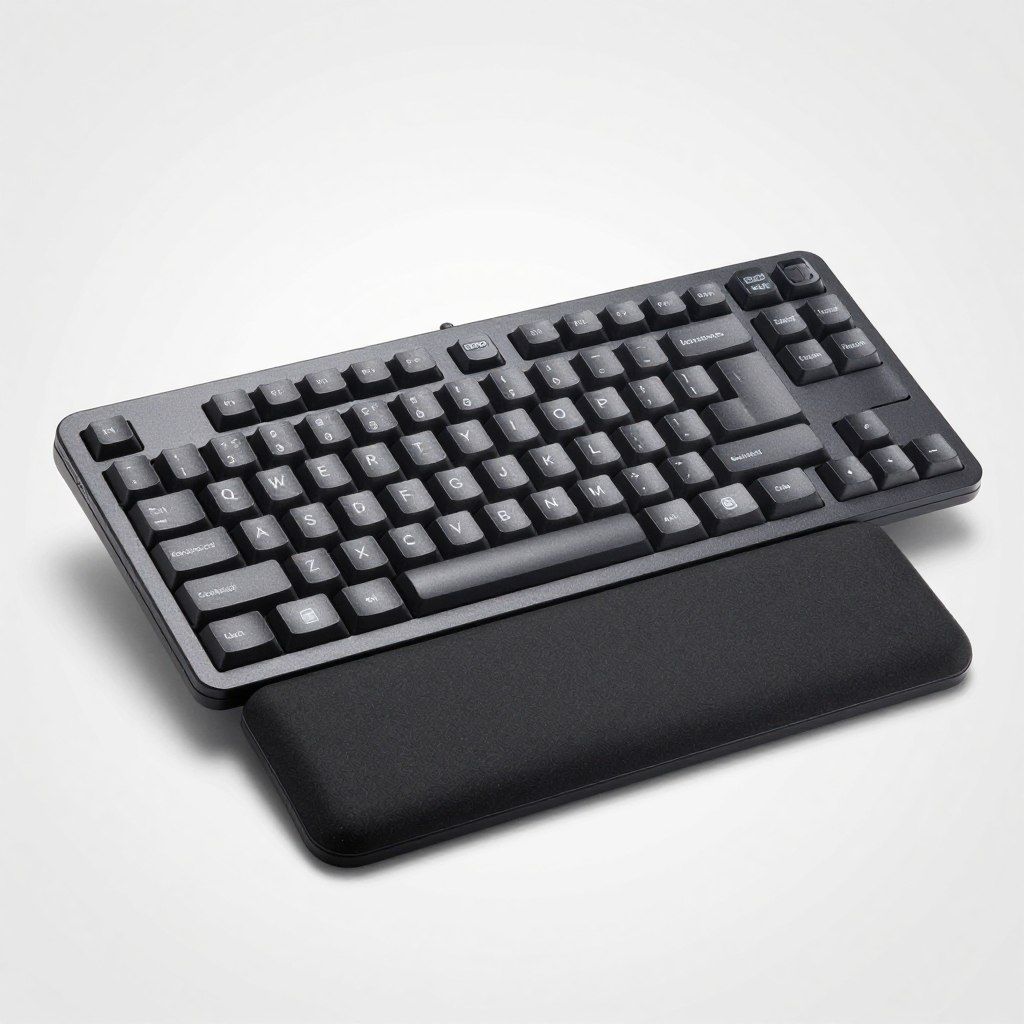
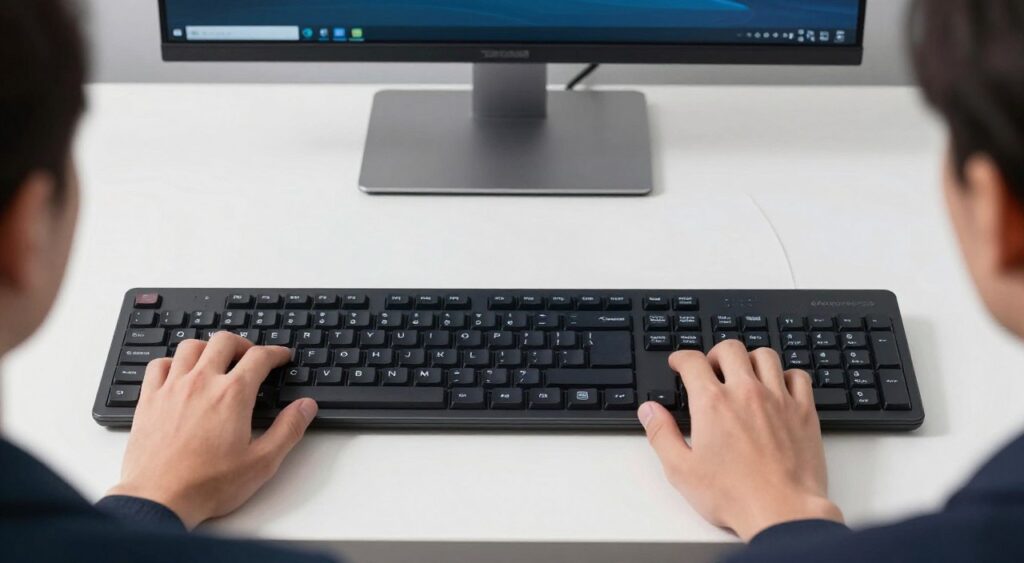
The Logitech Ergo K860 is designed for people who want ergonomic changes without abandoning the familiar full-size keyboard. Its curved frame separates the left and right key areas slightly, while the raised center and integrated palm rest guide the hands into a more open position.

Comfort and typing posture
The wide palm rest supports the heel of the hand without requiring a separate accessory. The wave keys keep the layout recognizable, so most users can adapt faster than they would to two halves or a columnar design.
The K860 is not a fully split keyboard. Both key areas remain in one shell, and the adjustment range is limited compared with a tented mechanical board. Users with shoulder or wrist issues may need more freedom to move the halves apart.
Build quality and switches
The plastic frame is light and suitable for a home office. The membrane switches are quiet and soft, which works well for video calls and shared spaces. They do not provide the crisp feedback of mechanical switches.
Software customization
Logitech software supports function-key remapping and device management. Customization is useful but limited when compared with the deep layers of the ZSA Moonlander or MoErgo Glove80.
Pros, cons, and value
Pros
- Familiar full-size layout
- Comfortable integrated palm rest
- Quiet wireless operation
- Usually the lowest price in this group
Cons
- Limited separation between the halves
- Membrane feel lacks mechanical feedback
- Large footprint with a number pad
Want a familiar wireless ergonomic keyboard?
The Ergo K860 is the practical first choice for office workers who want wave keys, a palm rest, and minimal relearning.
MoErgo Glove80 review: the most adjustable split design
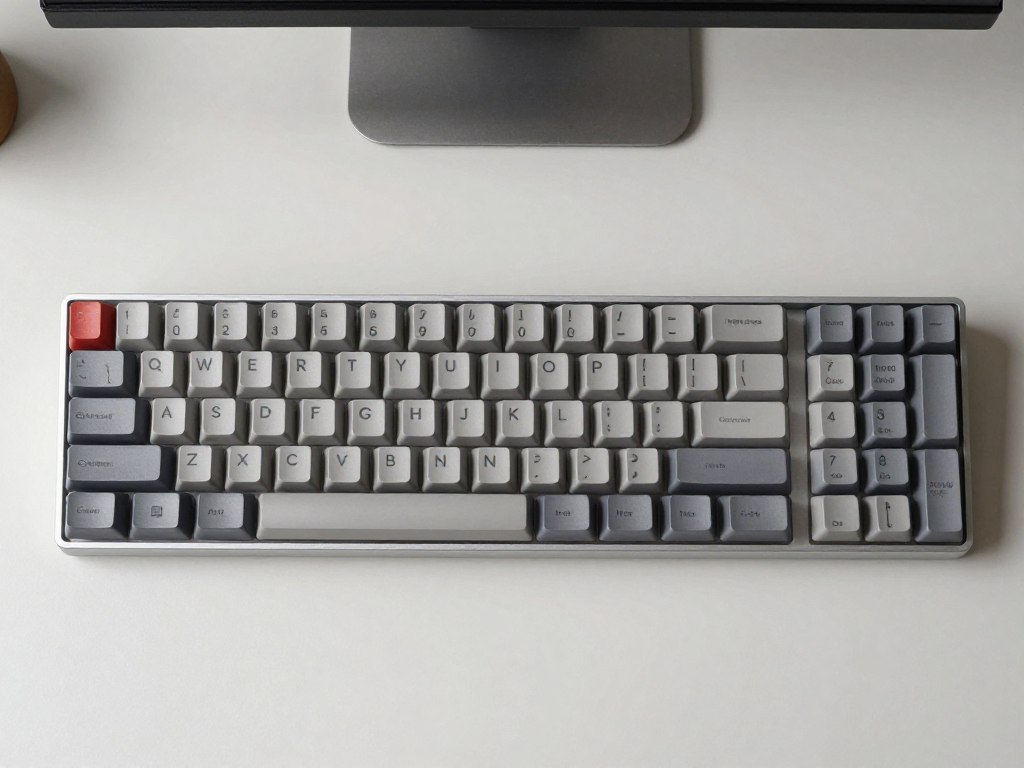
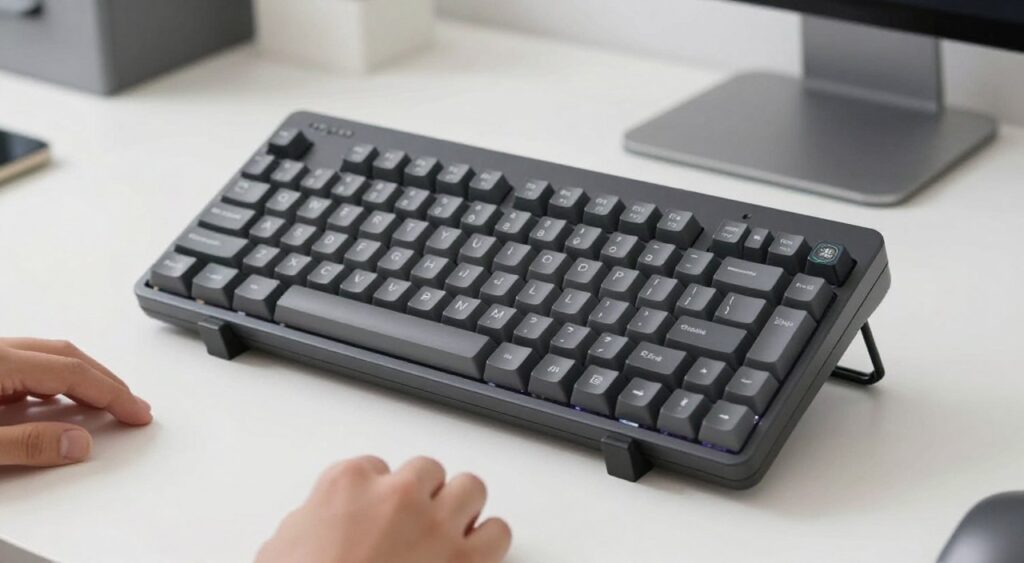
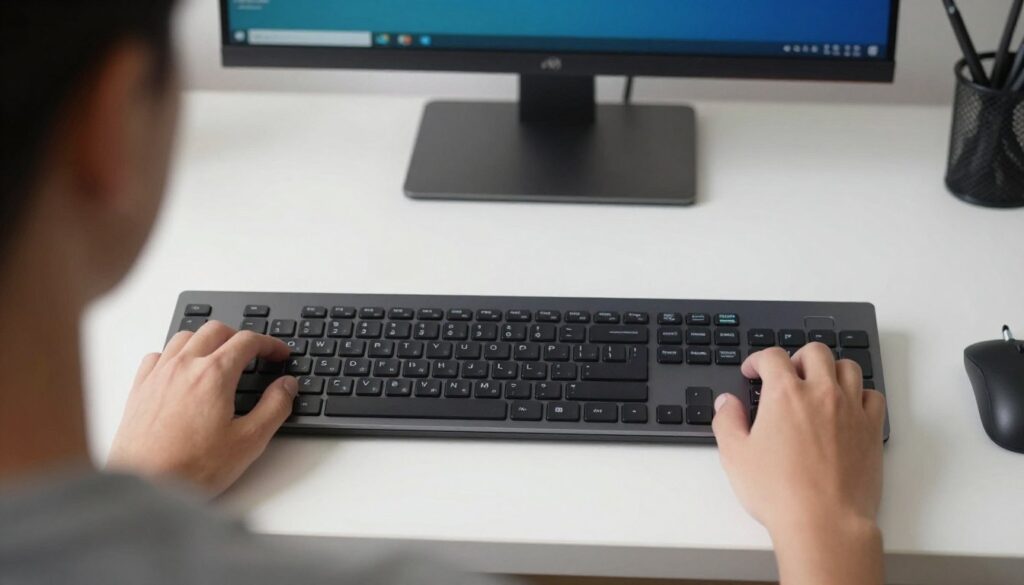
The MoErgo Glove80 is built around two independent halves and a low-profile columnar layout. Its concave key wells bring keys toward the fingertips, while the tenting supports let users raise the inner edges of the board.

Comfort and layout
The two halves can be placed at shoulder width, which may reduce the need to rotate the forearms inward. The concave key wells also limit finger travel. Users can tune the distance and angle over time rather than accepting one fixed position.
There is a learning period. The columnar layout changes the location of several keys, and the thumb clusters require practice. The board rewards users who are willing to build new muscle memory.
Build quality and switch options
The lightweight design is easy to move between a desk and a travel bag. Low-profile mechanical switches provide a more direct feel than the K860. The choice of switch affects noise, resistance, and typing speed, so buyers should select carefully.
Software customization
The Glove80 supports extensive remapping and layers. A user can place navigation, symbols, shortcuts, or application commands under the thumbs. This is particularly useful for programmers, writers, and professionals who repeat complex shortcuts.
Pros, cons, and value
Pros
- Independent halves allow flexible positioning
- Concave key wells reduce finger reach
- Adjustable tenting and palm support options
- Strong wireless and software flexibility
Cons
- High purchase price
- Steep learning curve for new users
- Less suitable for people who need a number pad
Need a highly adjustable split keyboard?
Review the current Glove80 configurations, switch choices, and accessories before buying. This is a specialist keyboard, not a simple plug-and-type upgrade.
ZSA Moonlander review: the best programmable option
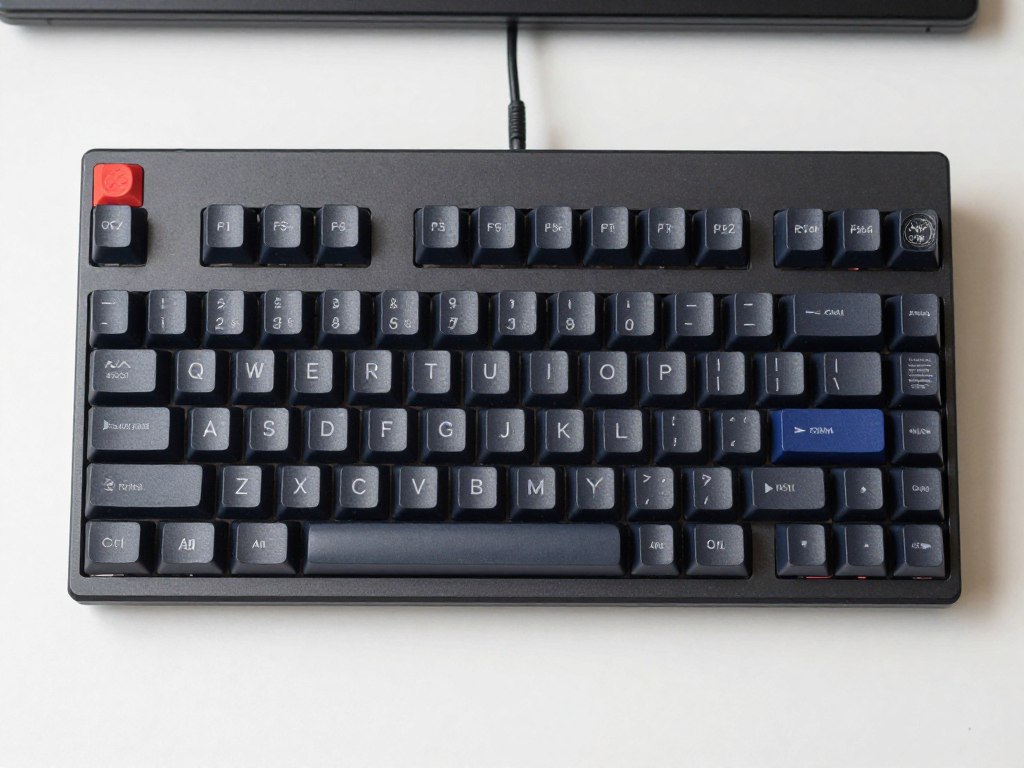
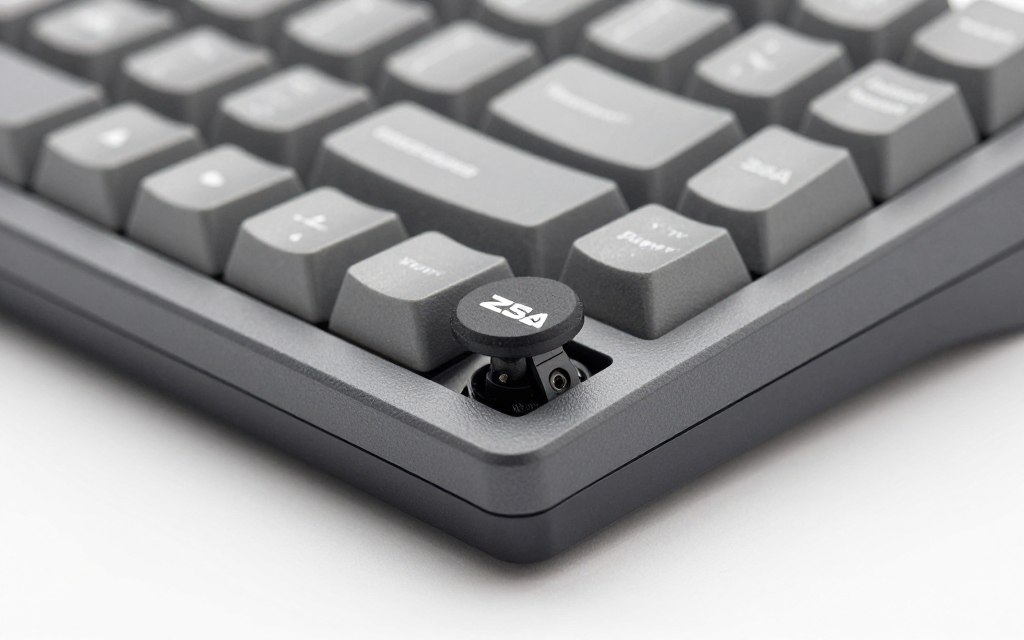
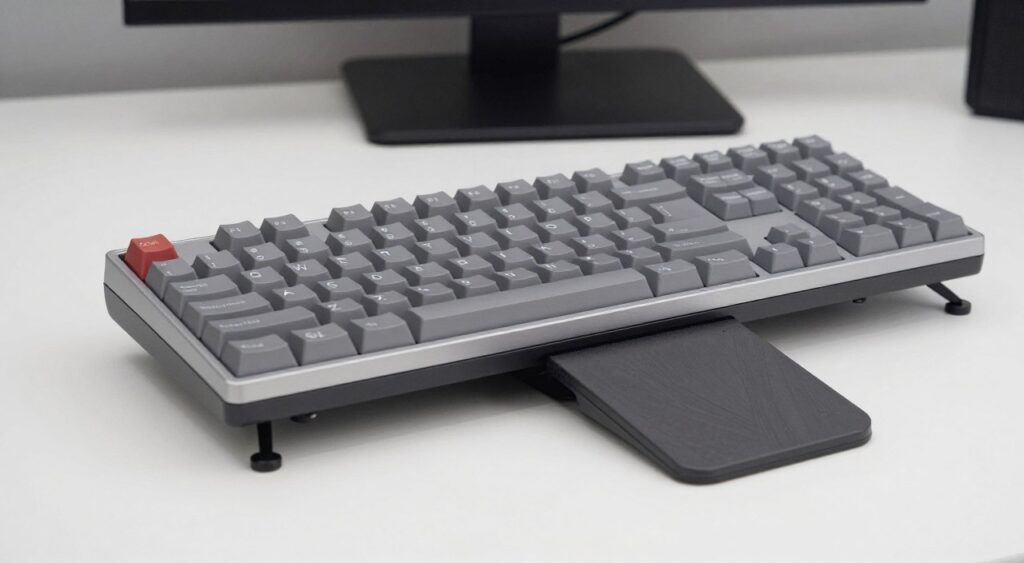
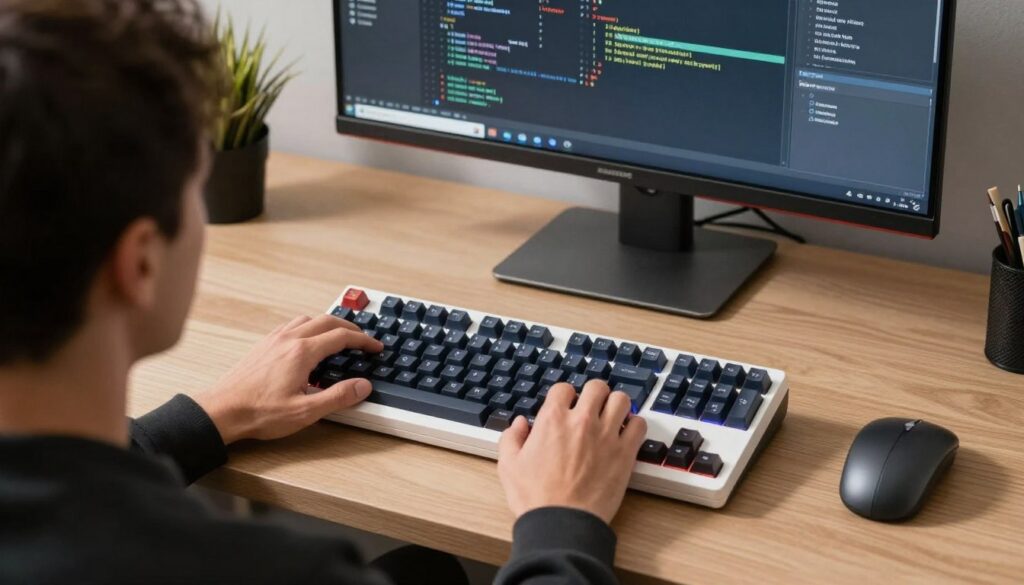
The ZSA Moonlander is a highly configurable split mechanical keyboard with thumb clusters, detachable cables, tenting legs, and programmable layers. It is aimed at users who want to define nearly every part of their typing workflow.
Comfort and typing posture
The Moonlander lets users move the two halves apart and angle them inward or outward. The thumb clusters can reduce reaching for common modifiers. Tenting is useful for users who prefer a more upright forearm position.
The design is tall and visually complex. It can feel excessive for someone who only wants a softer wrist rest or a curved conventional layout. The best setup requires careful adjustment rather than placing the board flat and typing immediately.
Build quality and switches
The board has a solid mechanical feel and replaceable switch options. Mechanical feedback can be satisfying, but loud switches may not suit shared offices. Quieter switch selections are safer for calls and household workspaces.
Software customization
ZSA’s configuration system is a major reason to buy the Moonlander. Users can assign layers, macros, tap actions, and application shortcuts. The visual approach makes complex remapping easier to understand than raw configuration files.
Pros, cons, and value
Pros
- Excellent remapping and layer control
- Adjustable tenting and thumb positions
- Strong mechanical switch ecosystem
- Good fit for programming and shortcut-heavy work
Cons
- Wired design only
- Expensive for a first ergonomic keyboard
- Requires time to learn and tune
Want deep keyboard customization?
Explore Moonlander layouts and switch choices if you are comfortable learning layers and using a wired connection.
Kinesis Advantage360 review: concave key wells with wireless freedom
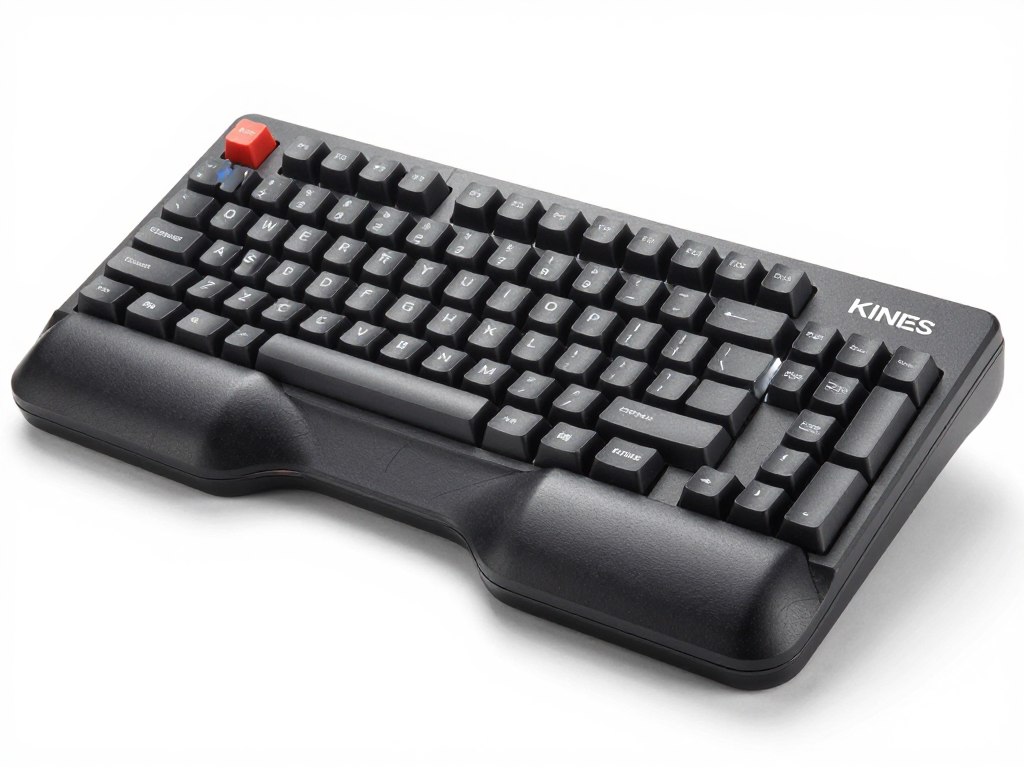
The Kinesis Advantage360 places the keys in two deep concave wells. The design keeps frequently used keys close to the fingertips and separates the halves so the user can set shoulder width and rotation independently.

Comfort and key wells
The key wells are the defining feature. They can reduce horizontal finger movement and help keep the hands in a relaxed position. The two halves also offer more shoulder freedom than a one-piece board.
The depth and columnar arrangement require commitment. Users who move between multiple computers may need a short adjustment period each time. It is less familiar than the Logitech Ergo K860 and less compact than many standard keyboards.
Build quality and software
The Advantage360 is made for frequent use and includes a substantial palm-support area. Wireless versions reduce cable clutter. Programming support depends on the model and configuration, so confirm the exact version before purchase.
Pros, cons, and value
Pros
- Deep concave key wells
- Independent halves improve positioning options
- Comfortable palm support
- Wireless versions suit flexible desks
Cons
- Expensive and less common than conventional boards
- Distinctive layout needs practice
- Large key-well structure may not suit small desks
Prefer deep key wells and a wireless option?
Check the exact Advantage360 model, connection mode, and programming features before ordering because configurations can differ.
Keychron Q10 review: a mechanical middle ground
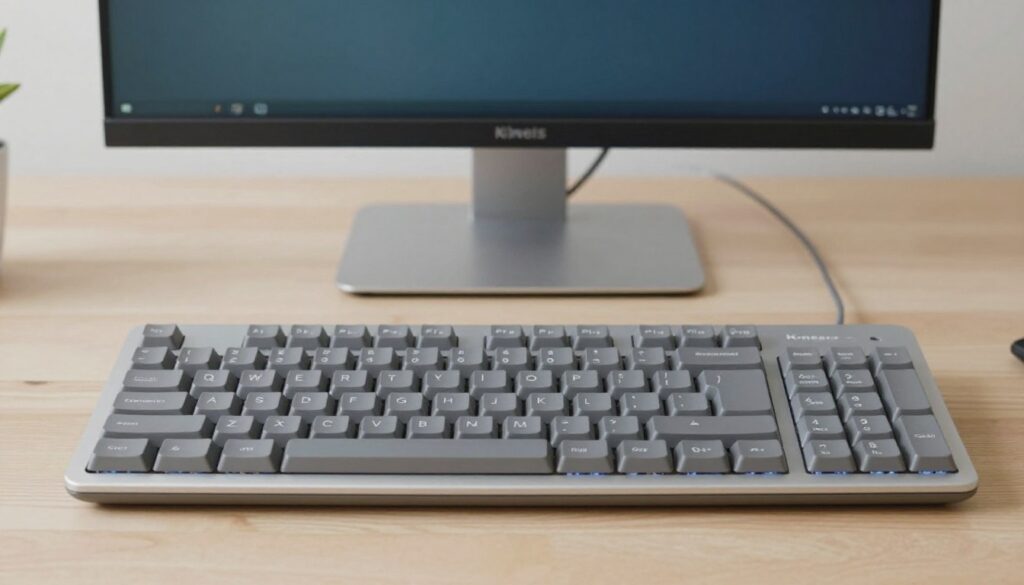
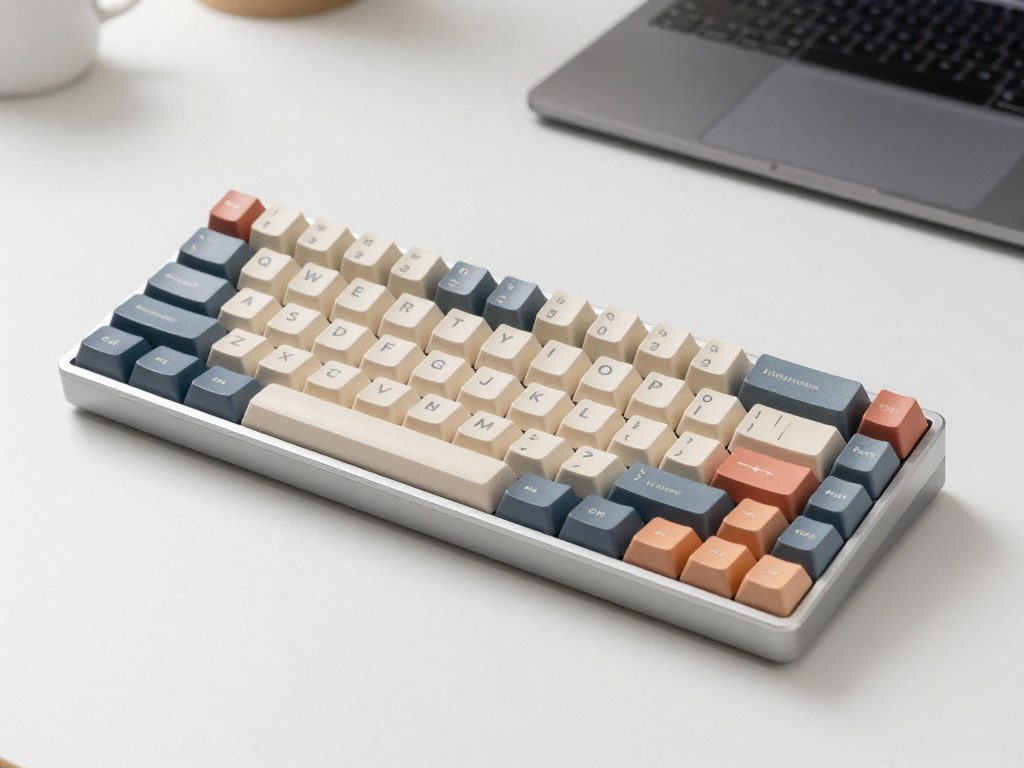
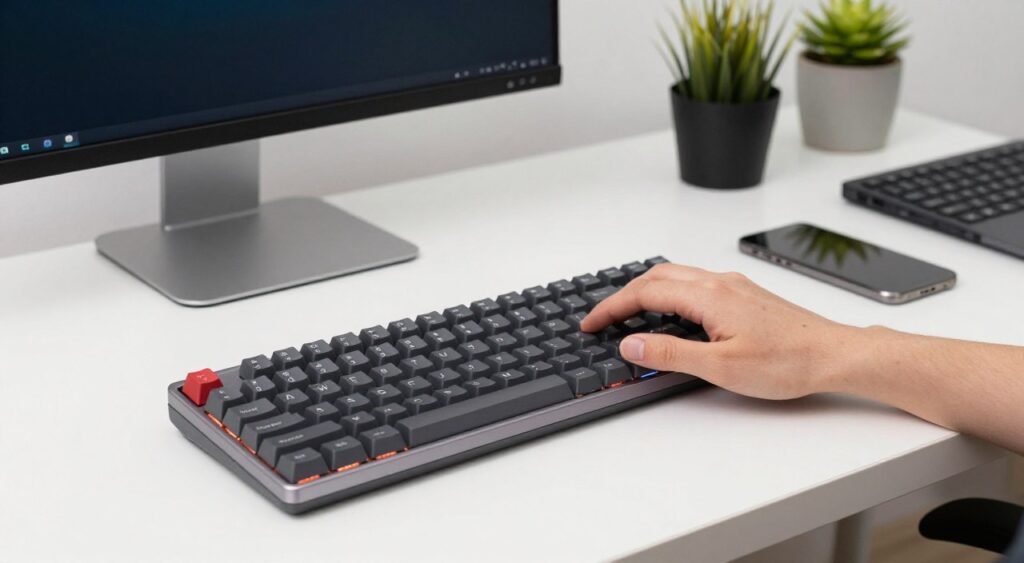
The Keychron Q10 gives mechanical keyboard buyers a compact split-style layout without the full separation of the Glove80 or Moonlander. Its Alice-style arrangement angles the key groups while keeping both sides in one chassis.
Comfort and design
The angled layout can reduce the straight-line reach of a conventional board while retaining a single-piece form. This makes it easier to move between desks and easier to explain to a coworker or family member.
Because the board is not fully split, users cannot freely set the two halves apart. It also lacks the deep concave key wells found on the Kinesis Advantage360 or Glove80.
Build quality and software
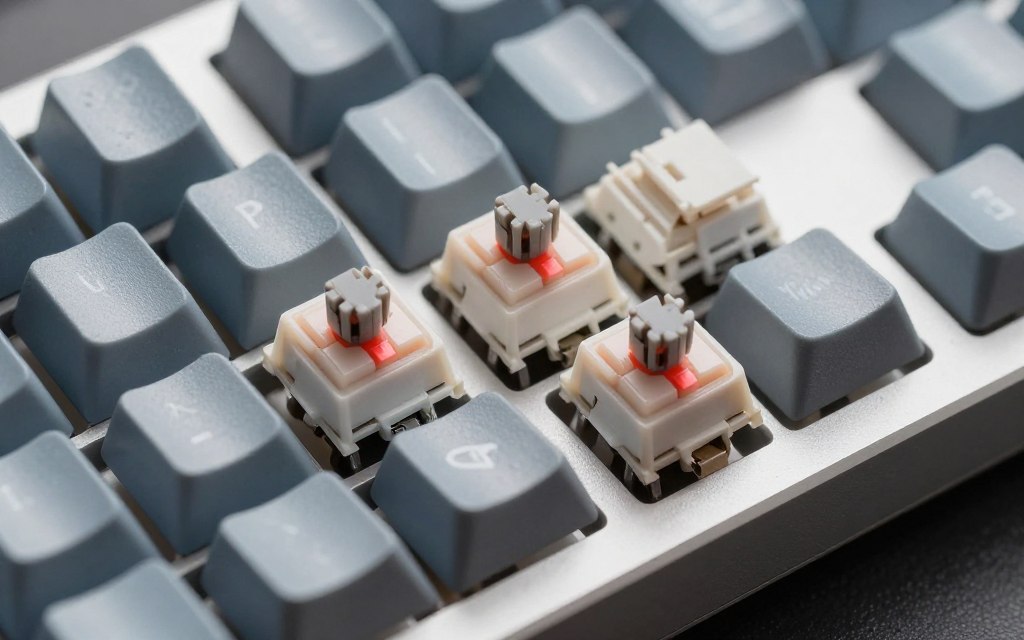
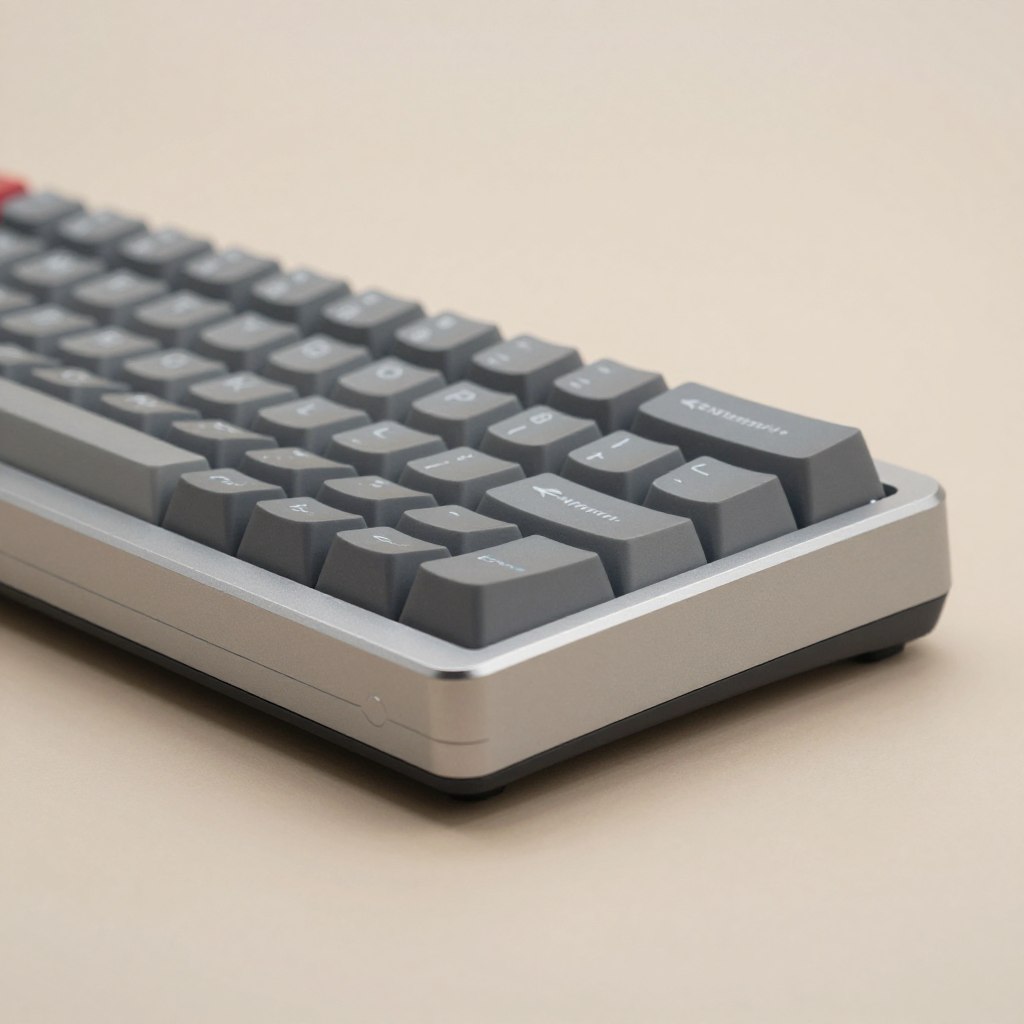
The metal construction gives the board a stable feel. Mechanical switch options allow users to balance noise and resistance. Software support can include remapping and lighting control, but the experience is not as specialized as ZSA’s layer system.
Pros, cons, and value
Pros
- Mechanical typing feel
- Compact one-piece design
- Useful middle ground for new buyers
- Strong desk stability
Cons
- Less adjustable than a true split design
- May not include an integrated palm rest
- Mechanical switches can be loud
Want mechanical keys without two separate halves?
The Q10 is a sensible compromise for buyers who want a compact ergonomic layout but still need a conventional one-piece board.
How to choose the right ergonomic layout for long work hours
Layout is the most important decision. A palm rest cannot correct a keyboard that forces the shoulders inward or makes the wrists bend toward the little fingers. Start with the position that feels difficult on your current keyboard.

One-piece curved layouts
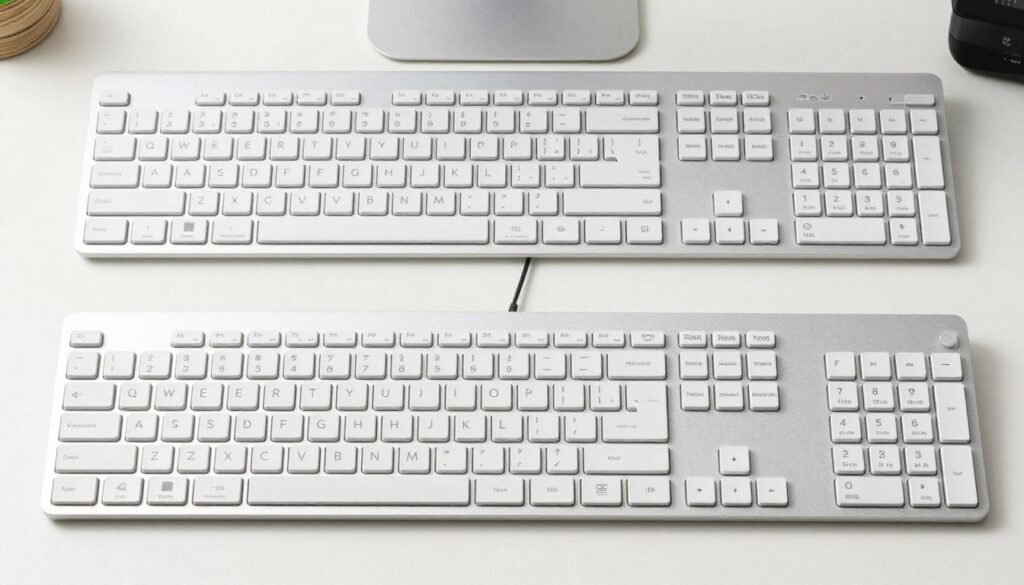
A curved one-piece layout is the easiest entry point. The Logitech Ergo K860 uses wave keys and a raised center without requiring users to manage two cables or separate halves. It suits people who want a familiar number row, function row, and number pad.
True split designs
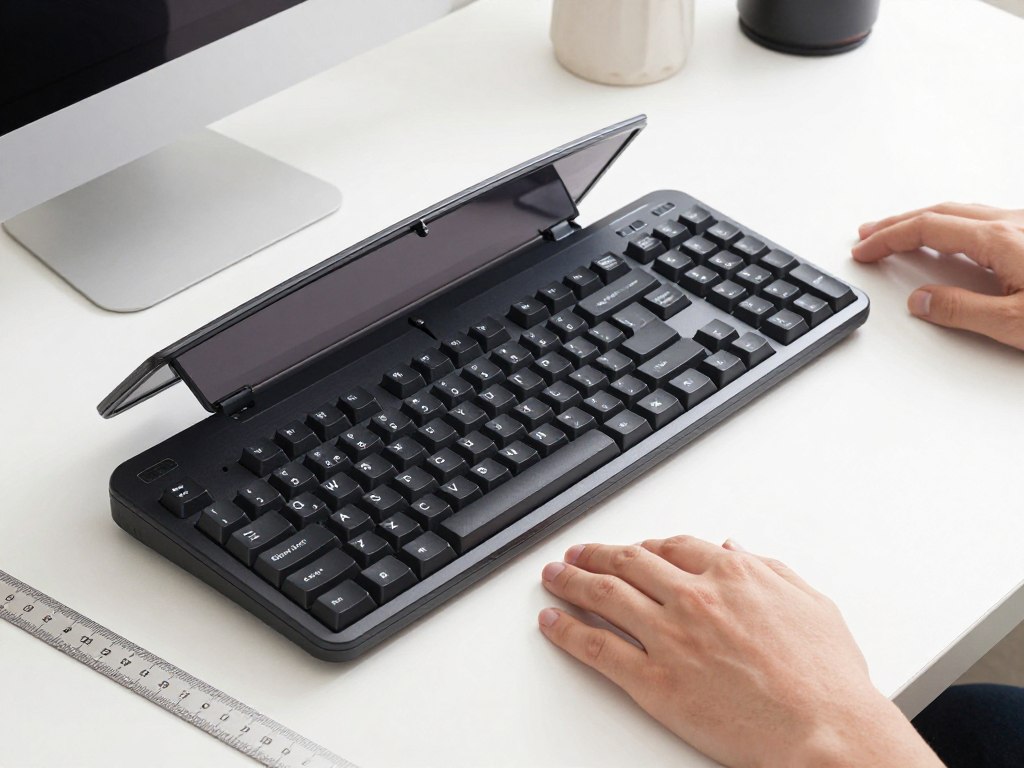
A split design lets you move the halves to match shoulder width. It can also allow independent rotation and tenting. The trade-off is desk space, setup time, and a higher chance that the first week will feel unfamiliar.
Concave key wells and columnar layouts
Concave key wells place keys in curved bowls around the fingertips. Columnar alignment places key columns more directly under the fingers. These features may reduce reach, but they change the feel of common keys and demand new typing habits.
Compact and Alice-style layouts
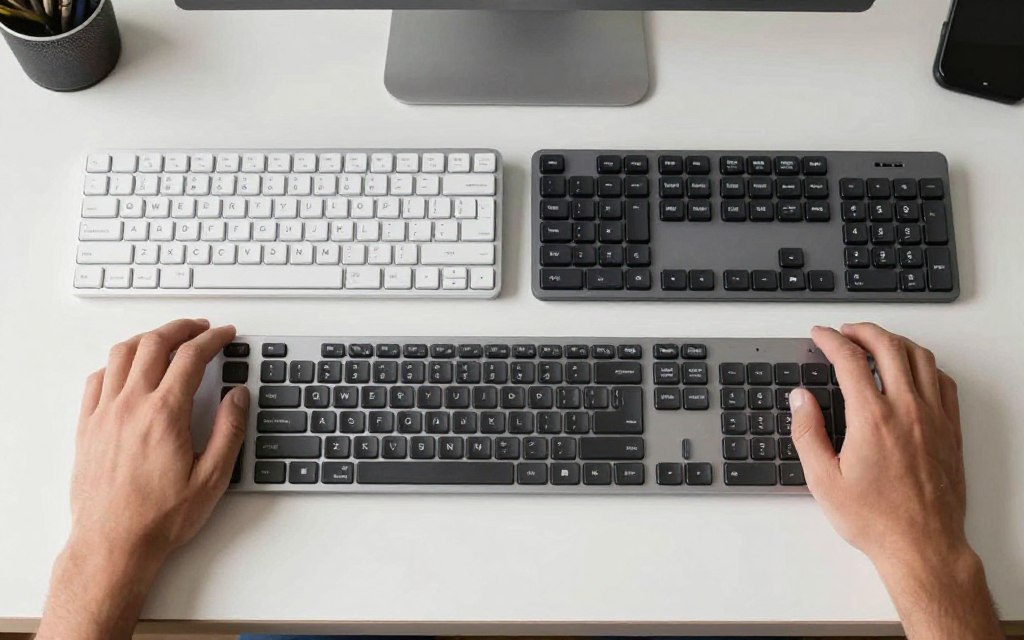
A compact board such as the Keychron Q10 keeps the two key groups in one chassis. It can be a good option when desk space, portability, or a standard cable setup matters more than maximum adjustment.
How to match a layout to your pain point
- Prioritize two halves
- Place the board near shoulder width
- Keep elbows relaxed
If your shoulders feel tight
- Try a curved or columnar layout
- Check the tenting angle
- Avoid forcing the palms into one position
If your wrists bend outward
- Choose wave keys
- Use an integrated palm rest
- Keep the familiar key arrangement
If you need a simple upgrade
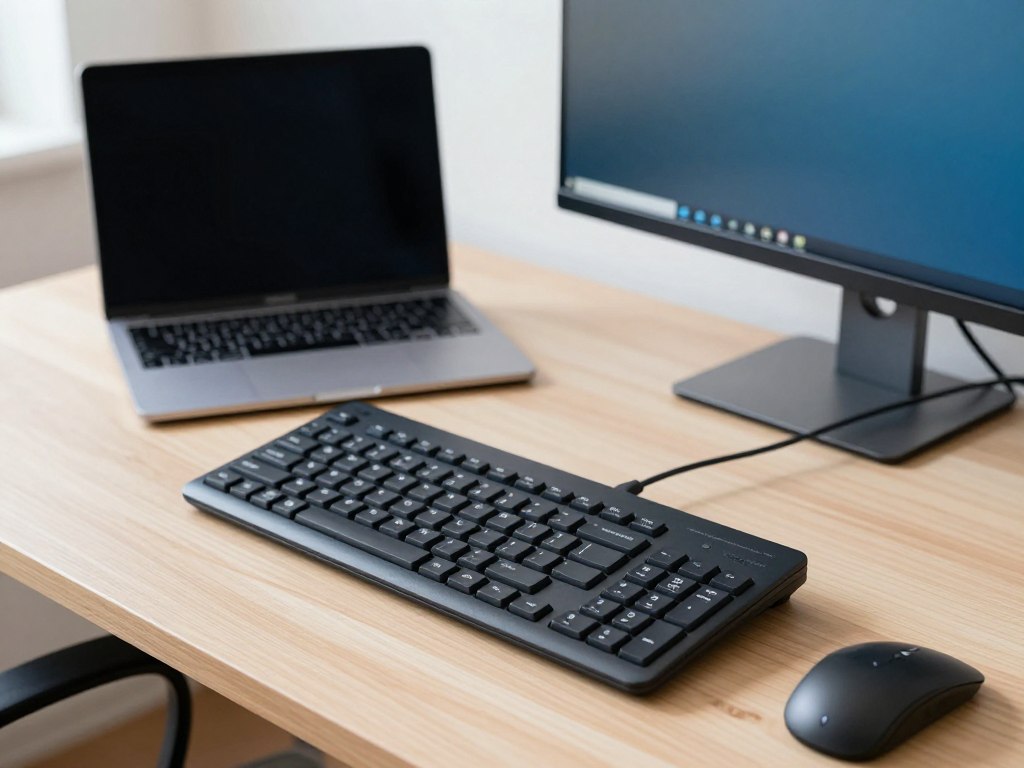
Split design versus curved wave keys
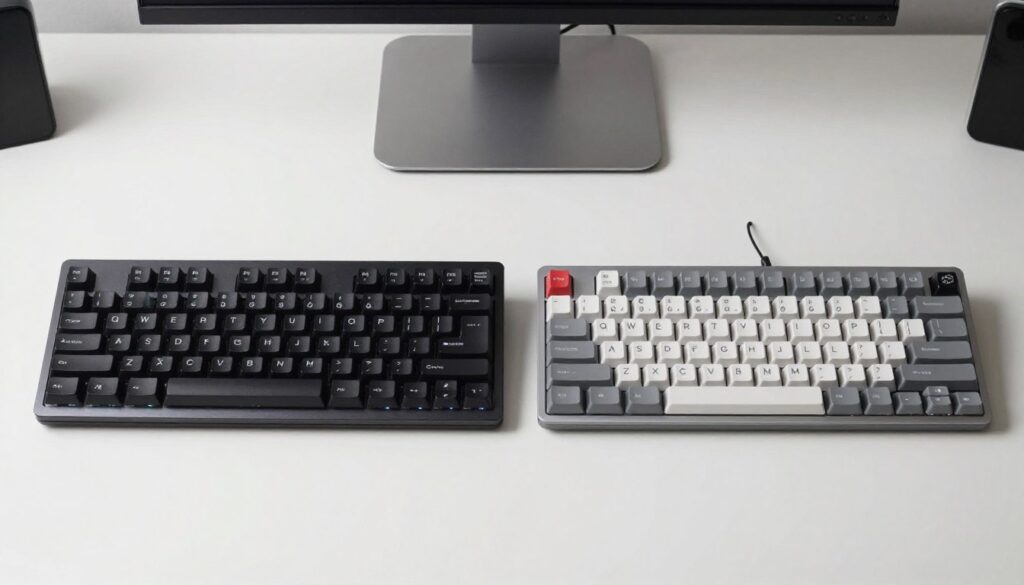
A split design offers more control. You can move the halves, change their angle, and sometimes add tenting. This flexibility is valuable when your desk, chair, or shoulder width does not match a fixed keyboard.
Wave keys offer simplicity. The Logitech Ergo K860 and similar boards keep the keyboard in one piece, so they are easier to carry, clean, and use with several computers. They usually have a smaller adjustment range.

Choose a split design when
- You want to adjust the distance between the halves
- Your shoulders feel crowded by a normal keyboard
- You are willing to learn layers or a new layout
- You have enough desk depth and width
Choose wave keys when
- You need a quick transition
- You rely on a number pad
- You share the keyboard with other people
- You want a lower initial price
Switches, noise, wireless support, and software
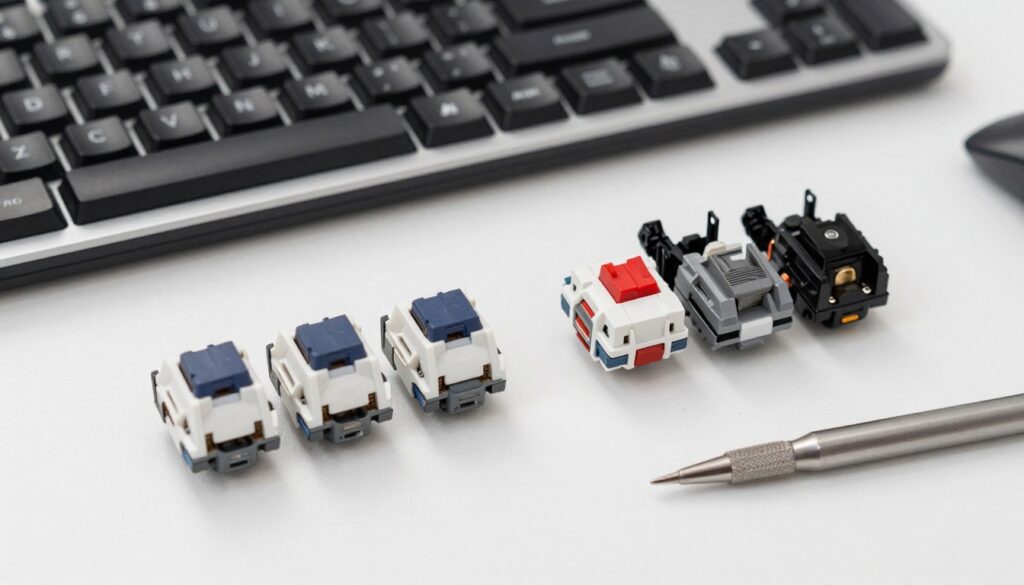
Switch type affects sound, resistance, and feedback. Quiet membrane switches are often practical for calls and shared rooms. Mechanical switches offer more choice, but a loud click can become a daily distraction.
Wireless support is useful for a clean remote desk, but check battery access, Bluetooth device switching, and whether the keyboard can work while charging. A wired board may be more predictable for a fixed workstation.
Membrane switches
Membrane keys are usually quiet and familiar. They are a good match for video calls, libraries, and shared spaces. Their softer response may feel less precise to users who prefer mechanical boards.
Low-profile mechanical switches
Low-profile switches keep key travel short and can work well in compact split boards. The best option depends on resistance and sound, not on the label alone.
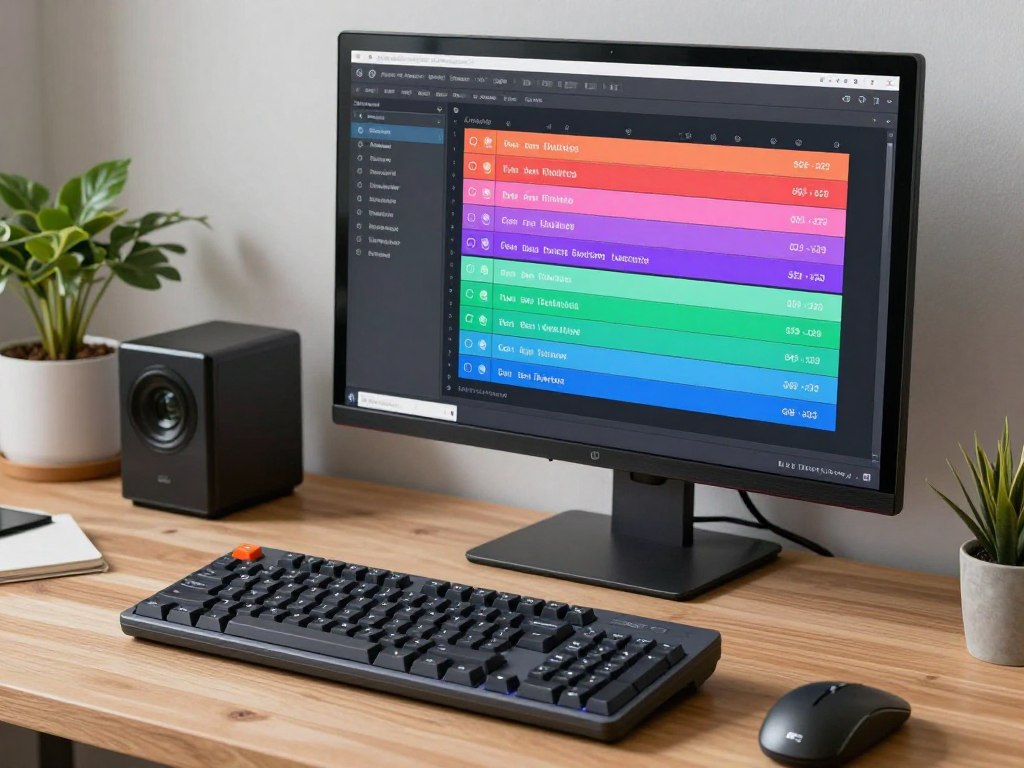
Programmable layers
Layers let one physical key perform different actions. A thumb key might access numbers, navigation, symbols, or application commands. This can reduce reaching, but it also adds setup work.
Compatibility checklist
- Confirm Windows and macOS support
- Check Bluetooth and receiver requirements
- Verify software support for your operating system
- Confirm the return policy before buying an unfamiliar layout
Using an ergonomic keyboard to support better posture
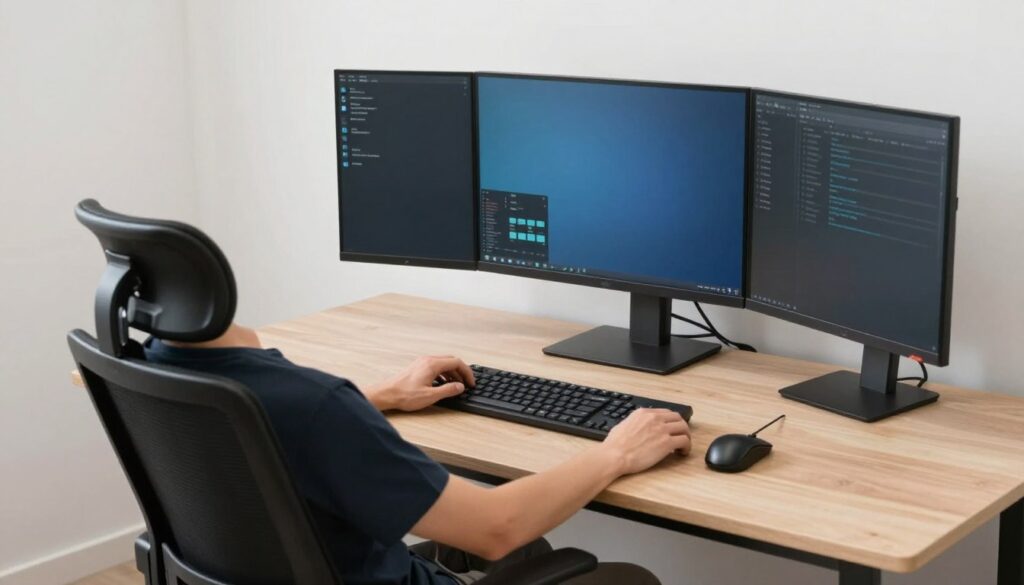
No keyboard can guarantee prevention of repetitive strain injury. A keyboard is one part of a workstation. Desk height, chair support, mouse position, monitor height, breaks, and workload also matter.

Start with neutral positioning
- Keep the keyboard close enough that the elbows stay near the body
- Set the board so the wrists are not sharply bent upward
- Place the mouse near the keyboard rather than far to one side
- Relax the shoulders and avoid pressing the palms into the desk
Adjust gradually
Change one variable at a time. Begin with the distance between the halves, then test tenting, key mapping, and palm support. A dramatic setup change can make it difficult to know which adjustment helps.
Take regular breaks
Short pauses can reduce continuous loading. Stand, move the shoulders, relax the hands, and look away from the screen. If pain, numbness, or weakness continues, seek advice from a qualified health professional.
Ergonomic products support a better setup, but they are not medical treatment. Stop using a configuration that increases discomfort.
What the top-ranking pages do well with CTAs
The ranking pages serve a purchase-research audience rather than a pure informational audience. Readers commonly arrive with a broad problem: their current keyboard feels uncomfortable. They leave with a shortlist and a preferred retailer or manufacturer page.
RTINGS-style CTA pattern
Testing-led review pages build trust through scores, category ratings, product comparisons, and links that appear near a buying decision. The tone is restrained. The CTA feels like the next step in research rather than a sales interruption.
Cuttles-style CTA pattern
Consumer roundup pages often use accessible product summaries and purchase links. The strongest format is a short product card followed by an action such as checking price or viewing the product. This works for cold readers who need fast orientation.
TechGearLab-style CTA pattern
Testing-focused pages connect recommendations to evidence. A CTA becomes more persuasive when it follows a clear “best for” statement, a drawback, and a value explanation. This reduces the fear that the recommendation is based only on brand familiarity.
Recommended CTA rules for this article
- Put one comparison CTA after the opening table
- Use one product CTA after each complete review
- Use “check current price” for conventional products
- Use “see configuration options” for specialized split keyboards
- Explain the main trade-off beside every button
- Keep the tone neutral and avoid urgency claims unless verified
Use the recommendation that fits your work style
A high-converting CTA in this category does not hide trade-offs. It helps the reader move from a considered shortlist to a suitable product page.
Best ergonomic keyboards: frequently asked questions
Is the Logitech Ergo K860 a true split keyboard?
No. The Logitech Ergo K860 has a curved one-piece design. Its wave keys and central rise change the hand position, but the two sides cannot be moved independently.
Are concave key wells better for everyone?
Not necessarily. Concave key wells can reduce finger travel and support a compact hand position, but they require an adjustment period. Personal fit and typing habits matter.
Are wireless ergonomic keyboards reliable for remote work?
Many are reliable when used within their intended range. Check battery life, Bluetooth switching, receiver support, and whether the keyboard can operate while charging.
Should a first ergonomic keyboard have mechanical switches?
Mechanical switches are optional. Quiet membrane keys are often easier for shared spaces, while mechanical switches offer more control over resistance and feedback.
How long does it take to learn a split design?
The answer varies. A familiar split board may take a short adjustment period, while columnar layouts, thumb clusters, and programmable layers can require several weeks of practice.
Final verdict: the best ergonomic keyboards for remote professionals
The Logitech Ergo K860 is the best starting point for most remote professionals who want comfort changes without a major learning curve. It combines wave keys, a cushioned palm rest, wireless connectivity, and a familiar full-size layout.
The MoErgo Glove80 is the strongest premium choice for users who want two halves, concave key wells, tenting, wireless flexibility, and deep customization. The ZSA Moonlander is better for wired power users who want advanced layers and adjustable thumb clusters.
The Kinesis Advantage360 is a strong choice for people who specifically want sculpted key wells and independent halves. The Keychron Q10 is the sensible mechanical compromise for buyers who want a one-piece board with a more angled layout.
Choose based on the change you need most. If you want simplicity, start with the Ergo K860. If you want control over spacing and tenting, choose a split design. If you want the most customization, accept the learning curve of a programmable board.
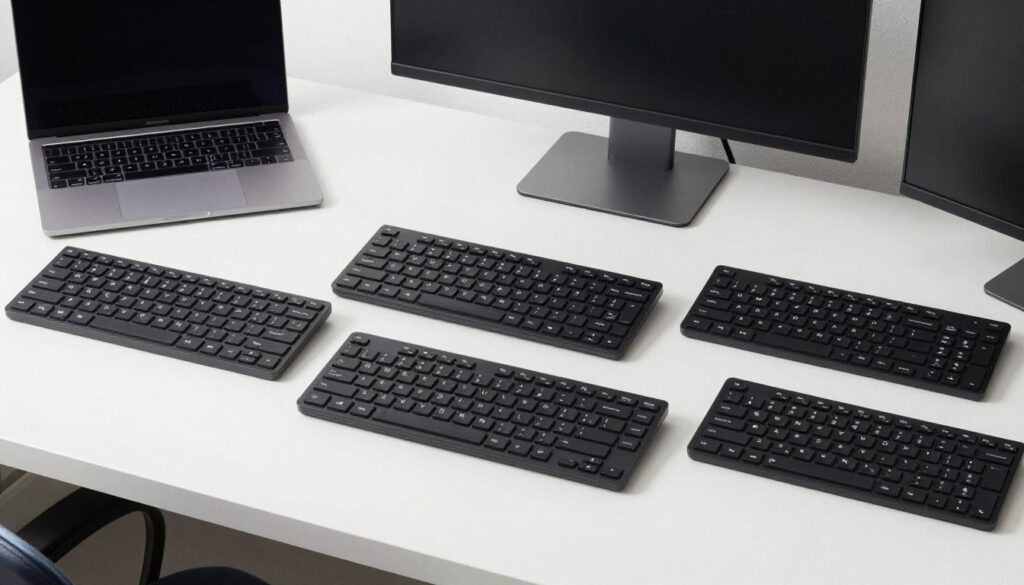
Choose your next keyboard with confidence
Review the layout, connection type, wrist support, switches, price, and return policy before you buy. The right keyboard is the one that fits your posture, desk, and daily work.